The Save Tagset tab, located sixth from the left, allows you to store a tagset of selected variables for future use. Previously stored tagsets can be reloaded from the Choose Tagsets tab.
Saved tagset file contents
Saved tagsets are simple text files containing a list of selected variables. As you search for variables of interest, you can add, modify, save, or delete items within your tagset. When ready to download cohort data, the NLS Investigator uses the tagset to generate the dataset and its accompanying documentation.
Tagsets can be saved using either the RNUM (reference number) or the QNAME (question name) with the survey year appended. Both formats work identically within the NLS Investigator, so you may choose whichever is more convenient. RNUMs are the traditional unique identifiers used throughout NLS datasets, while QNAME+YEAR entries may include a brief description. Because tagsets are stored as plain text files, they can be opened and edited in any text editor, allowing you to easily modify, merge, or combine multiple tagsets as needed.
How to save a tagset
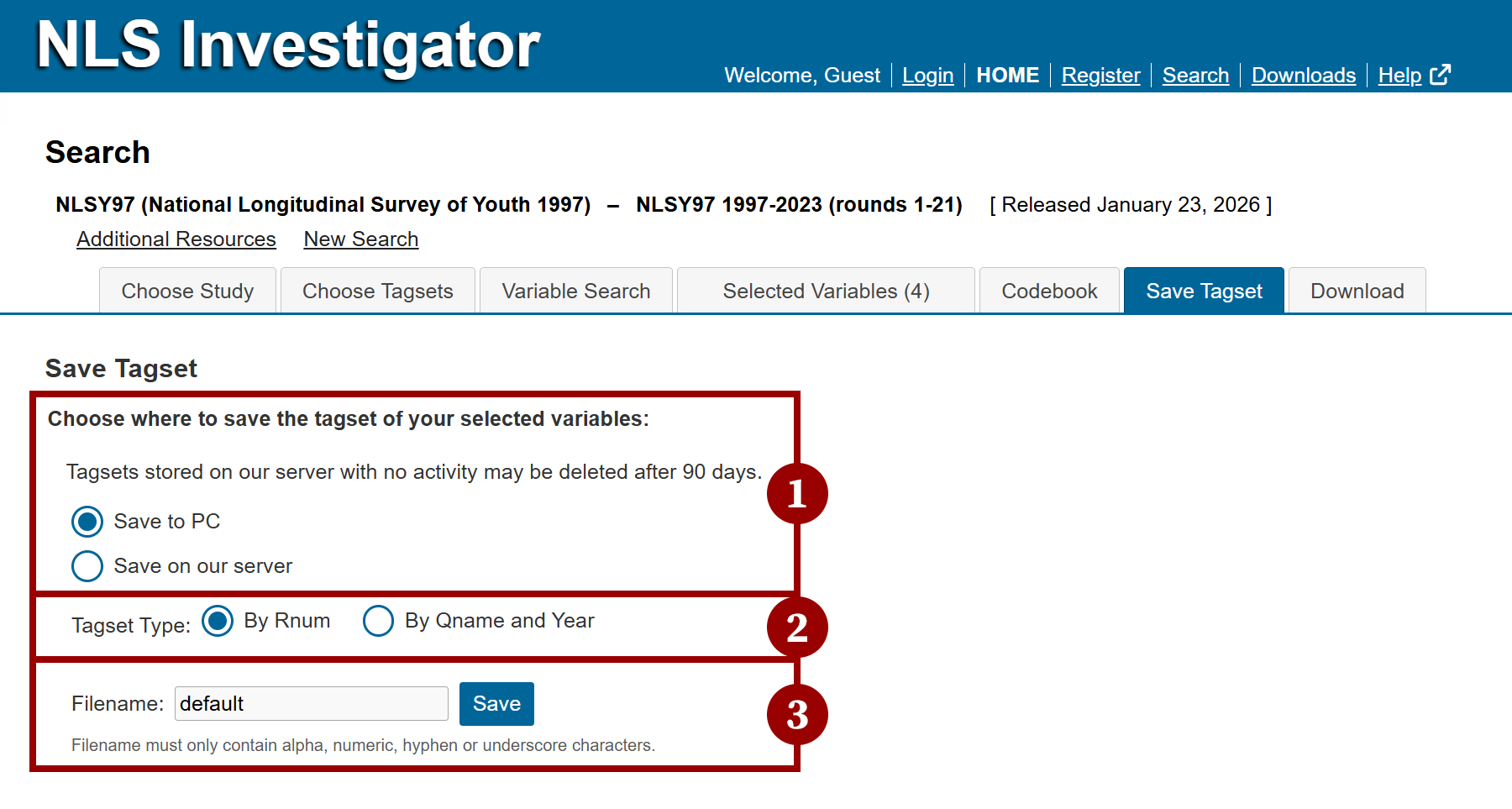
After you have completed a search and tagged your variables, the following steps will guide you through the tagset saving process:
- Choose where to save the tagset file:
- Select Save to PC to store it on the your computer (this is the only option without a registered account), or
- Save on our server as a registered user.
- Note: Tagsets saved on the server may be deleted after 90 days of inactivity.
- Choose a Tagset Type:
- By Rnum
- By Qname and Year
- Enter a filename for the tagset in the Filename field and click the Save button. If no filename is provided, it will be labeled, default.
Note: Filenames may contain only letters, numbers, hyphens (-), and underscores (_). The downloaded files will be packaged in a .zip file.
Next: Download Options
Previous: Codebook
Quick links: Table of Contents | Glossary of NLS Terms