There are two primary ways to customize the search results tables within the Variable Search tab:
Variable preference level
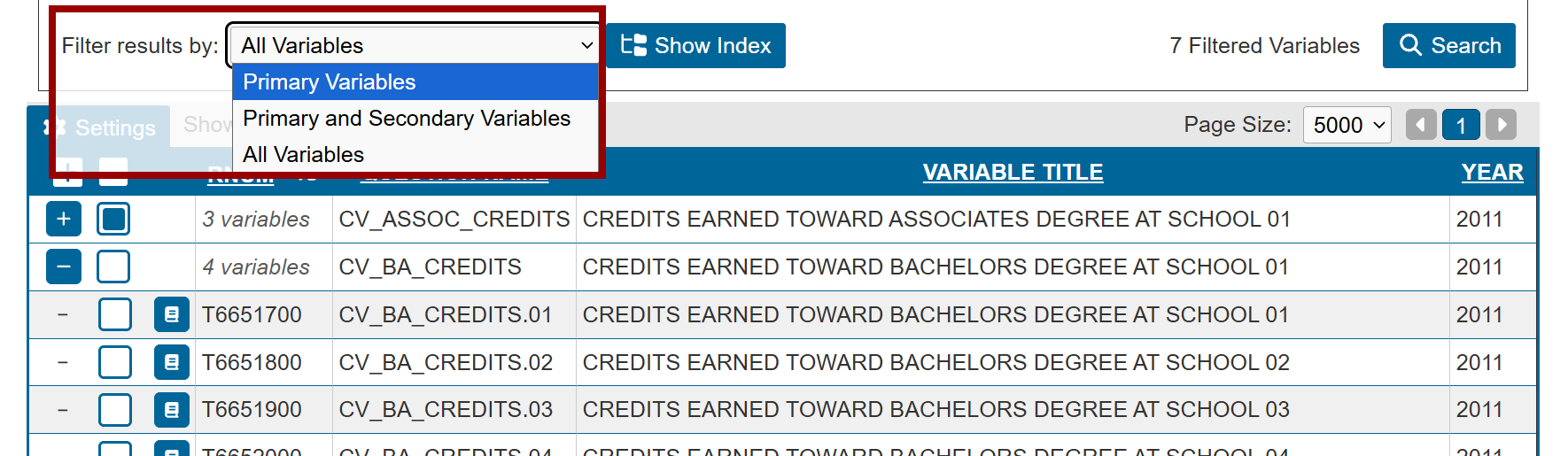
At the bottom of the Search Criteria section, there is a Filter results by drop-down menu with the following options: Primary, Primary and Secondary, and All Variables.
- Primary Variables are the most important and generally include all created and event-history variables, all roster variables, and respondents' responses to survey questions that are not superseded by better information in a roster or created variable.
- Secondary Variables are questions asked in the interview that are superseded by created or roster variables. While these questions might be useful for very detailed research about a narrow topic, they won't be needed by most researchers.
- Tertiary Variables are generally machine check items and are only available when the All Variables level is selected. These variables are included in the data to enable researchers to follow the flow of the interview, but in most cases they should not be used as input variables in research.
It's recommended that you start your search with primary variables before using other preference levels.
Variable display options
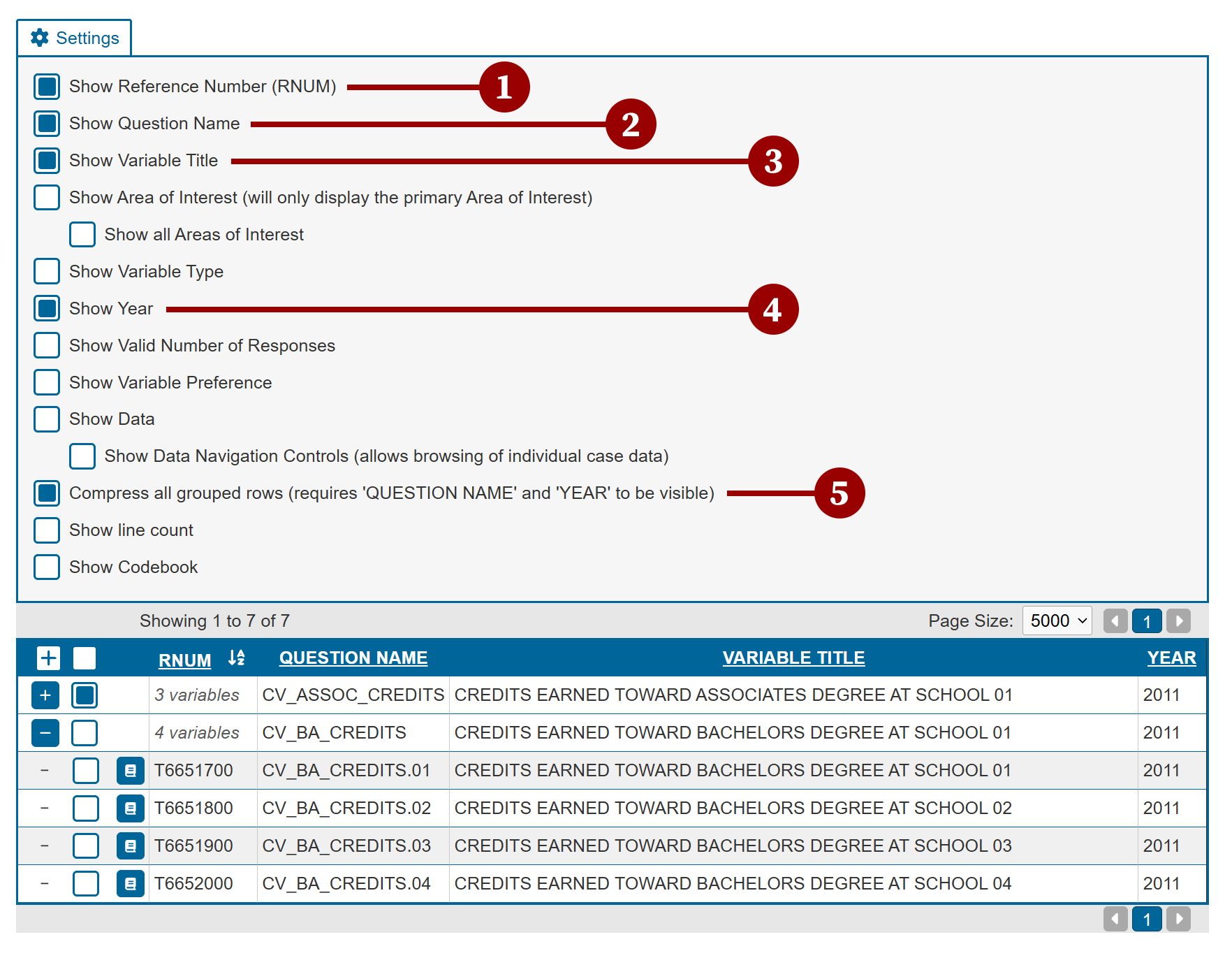
In the upper-left corner of the search results table is a Settings menu containing additional variable characteristics. Select Settings to open and then select or unselect checkboxes to show or hide columns in the search results table.
By default, the following options are selected:
- Show Reference Number (RNUM)
- Show Question Name
- Show Variable Title
- Show Year
- Compress all grouped rows (requires Question Name and Year to be visible)
Variables are listed in order of reference number (RNUM) by default. To change the order, click the column headers to re-sort the search results.
Additional variable characteristics
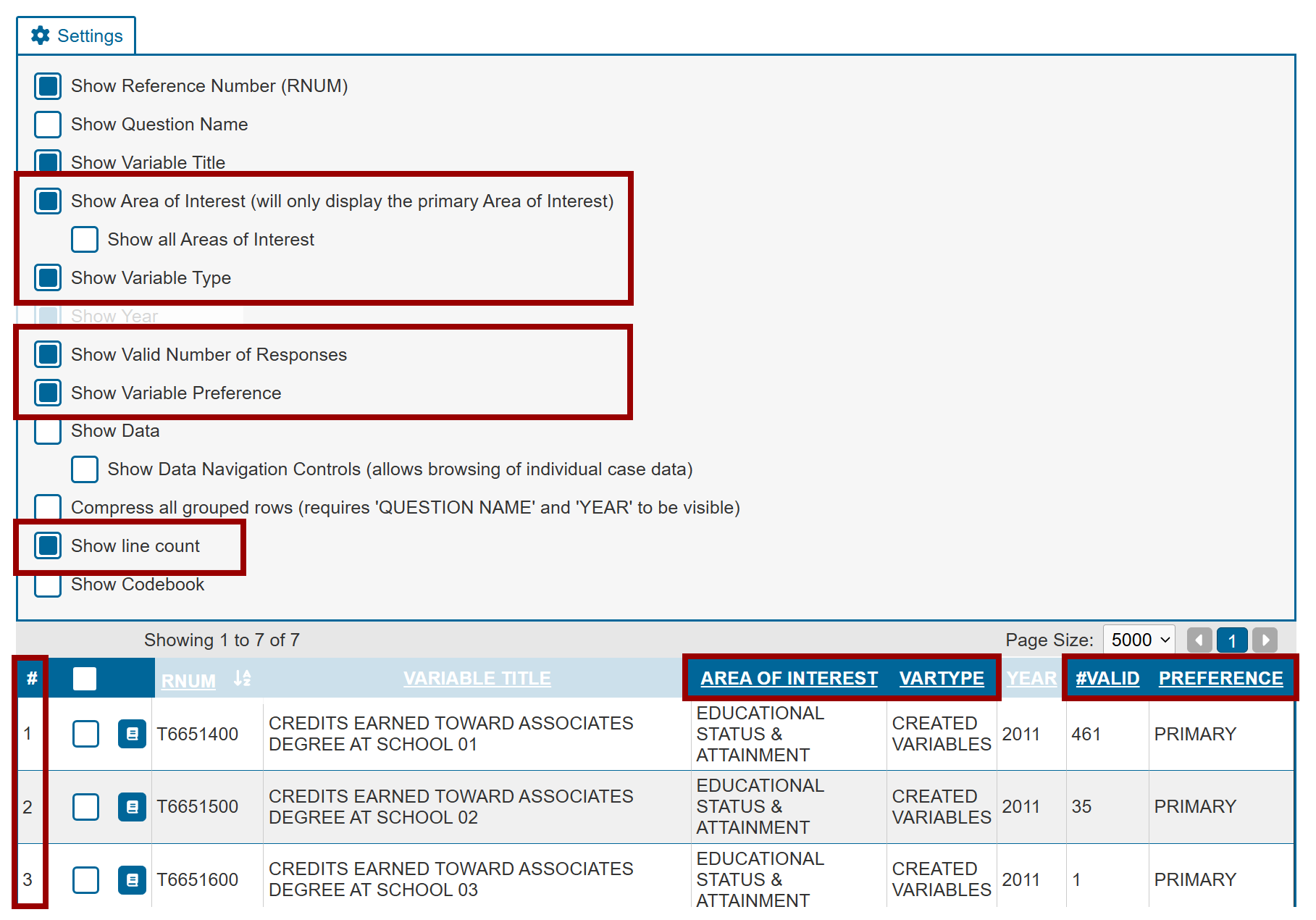
Additional display options allow you to customize the columns in the search results table, providing more detail about each variable. The image below highlights these options:
- Show Area of Interest (will only display the primary Area of Interest), such as Educational Status & Attainment
- Show Variable Type, such as Created Variables or Event History
- Show Valid Number of Responses (#Valid)
- Show Variable Preference
- Show line count which sequentially numbers the rows of the results table
Show Data display option
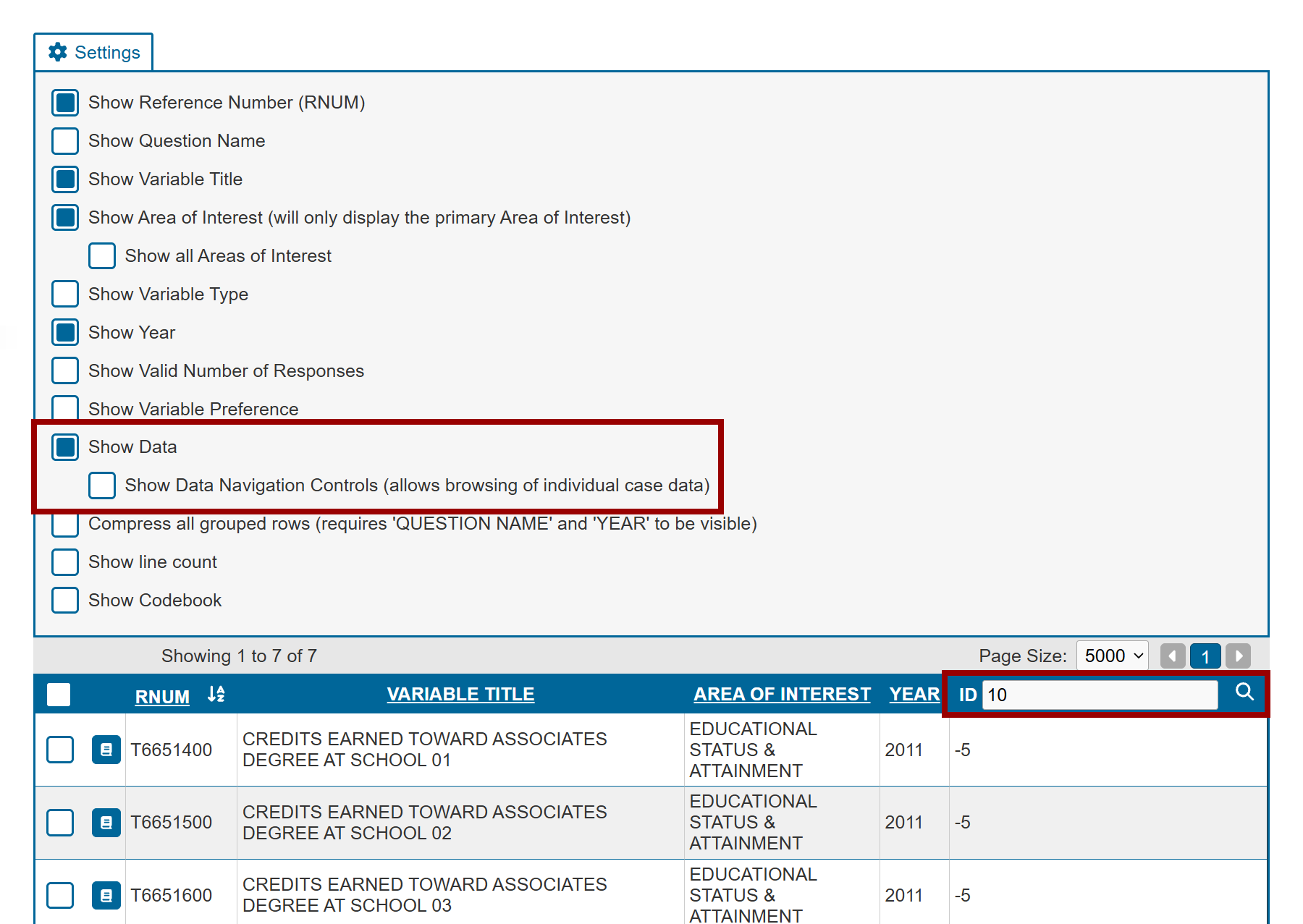
The Show Data option adds an ID column with a textbox and search icon to the search results table. Entering a respondent’s PUBID displays their corresponding responses for each listed variable. Enabling Show Data Navigation Controls adds arrow buttons in the far-right column, allowing you to move sequentially through respondents.
In this example, entering “10” and selecting the search icon displays data for the respondent with PUBID = 10 across all variables.
Next: Codebook Preview
Previous: Tag Variables
Quick links: Table of Contents | Glossary of NLS Terms