The Frequency sub-tab, the third option within the Download tab, allows you to generate a frequency distribution for one or more variables listed in the Selected Variables tab.
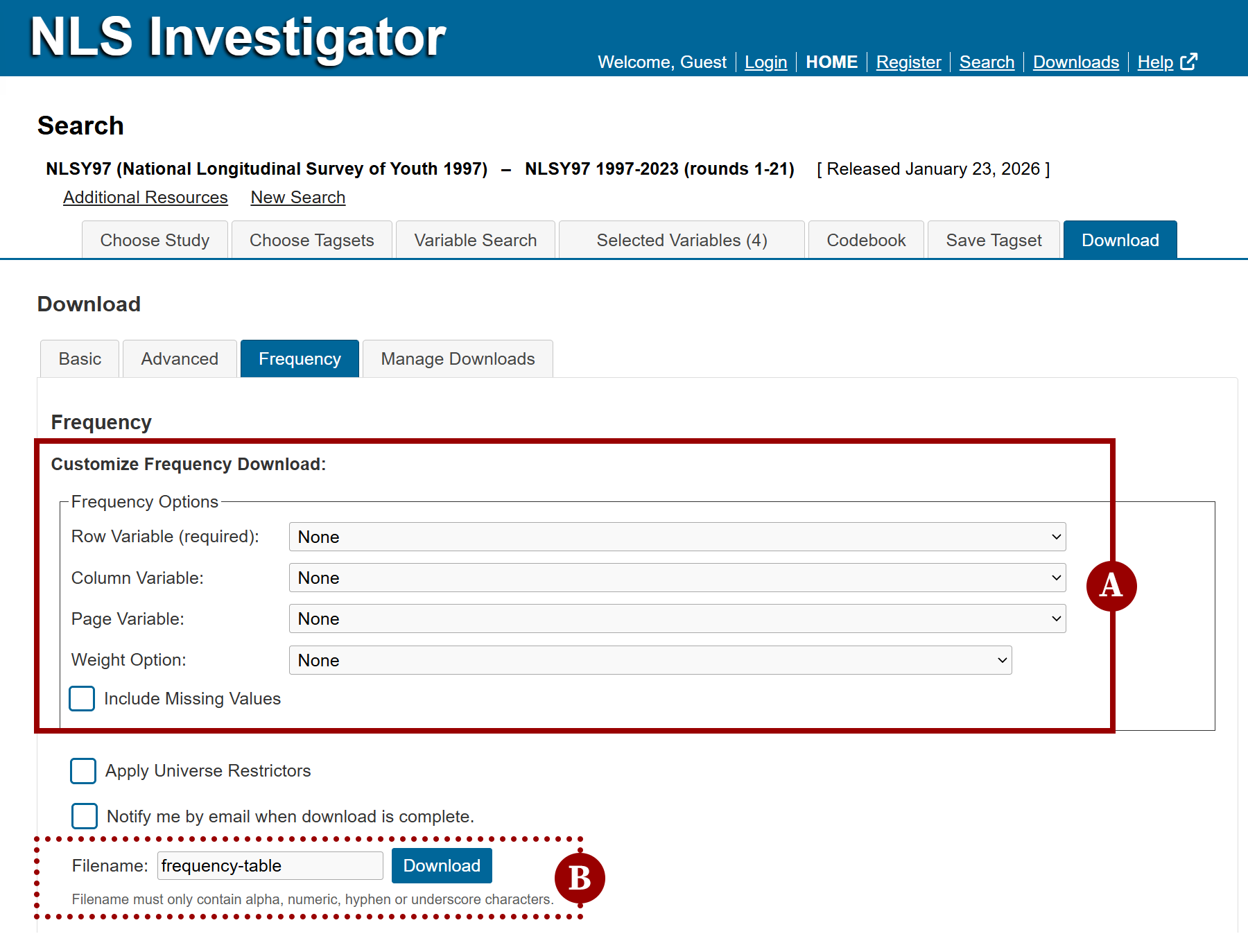
In the Frequency Options (marker A), there are four drop-down menus and one checkbox:
- Row Variable (field)
- Column Variable (field)
- Page Variable (field)
- Weight Option (field)
- Include Missing Values (checkbox)
How to create a frequency table
Create a frequency table by selecting variables from the Row, Column, and/or Page drop-down menus. Variable options come from the current tagset in the Selected Variables tab. You can analyze a single variable or build a cross-tab of up to three. After selecting variables, you can optionally apply a sampling weight using the Weight Option drop-down menu. For details on weights, see the NLS Custom Weights page.
Similar to the Customize Download Data, enter a filename for the frequency table in the Filename field and click the Download button to generate the files (marker B). If no filename is provided, it will be labeled, default.
Note: Filenames may contain only letters, numbers, hyphens (-), and underscores (_). The downloaded files will be packaged in a .zip file.
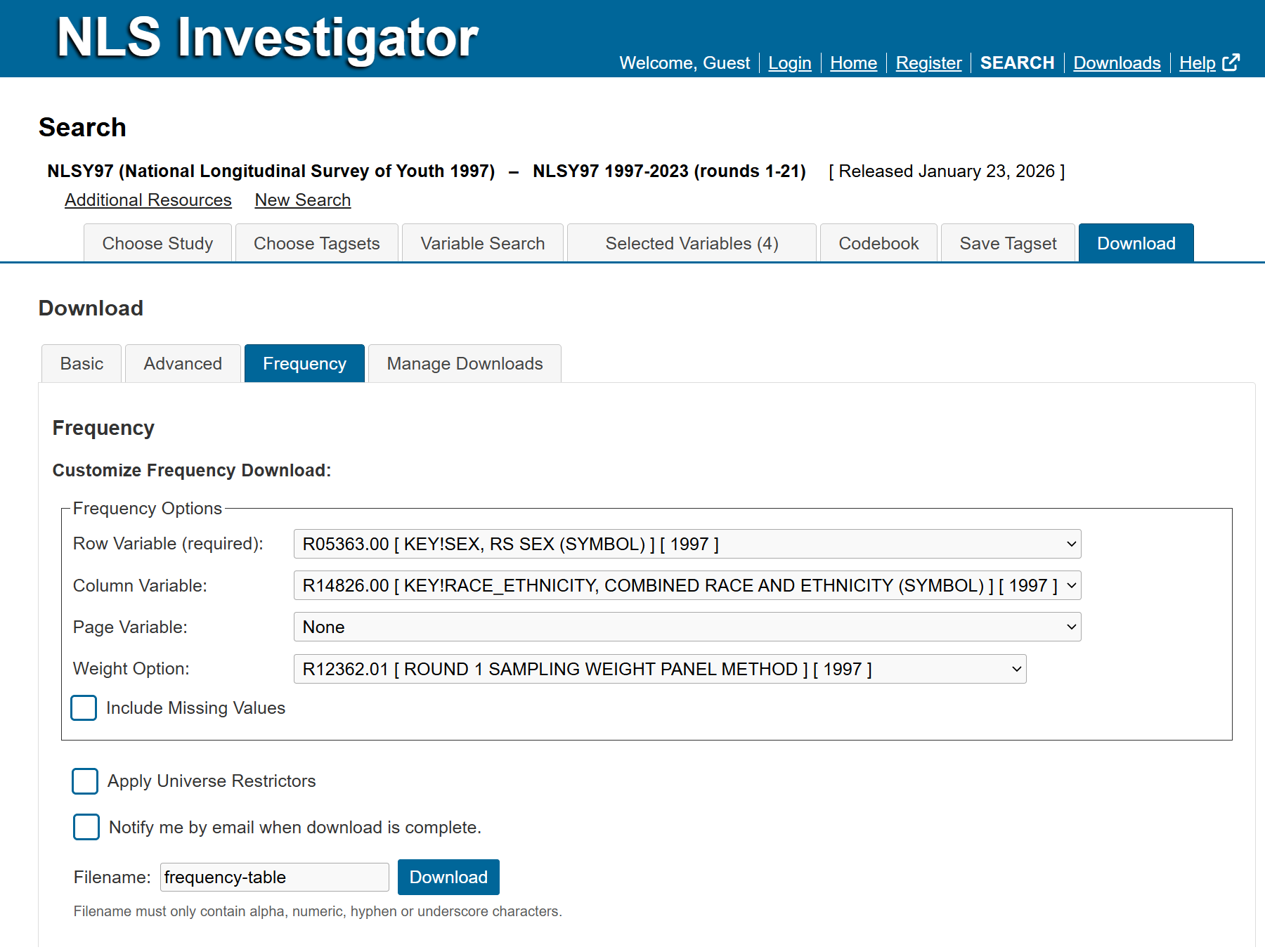
In the image below:
- Row Variable = R05363.00 | KEY!SEX, RS SEX (SYMBOLS) [1997]
- Column Variable = R1482600 | KEY!RACE_ETHNICITY, COMBINED RACE AND ETHNICITY (SYMBOLS) [1997]
- Page Variable = None
- Weight Option = R12362.01 | [ROUND 1 SAMPLING WEIGHT PANEL METHOD] [1997]
- Include Missing Values is unchecked
- Filename = frequency-table
The result is a cross-tab of R0536300 (sex) by R1482600 (race/ethnicity) that is weighted based on survey year 1997.
Additionally, below the Frequency Options is the Apply Universe Restrictors checkbox used to define a subset of the selected variables. For example, entering the expression R0536300 = 2 as a universe restrictor will limit the frequency table to female respondents.
Frequency table output
The download status will appear under the Manage Downloads sub-tab, the fourth option within the Download tab. The results of the frequency table process will be listed in the downloads list using the filename previously entered. Clicking the corresponding filename link in the Name column will open a browser window with the SAS output. You can also right-click on the filename link to save the frequency table to your computer.
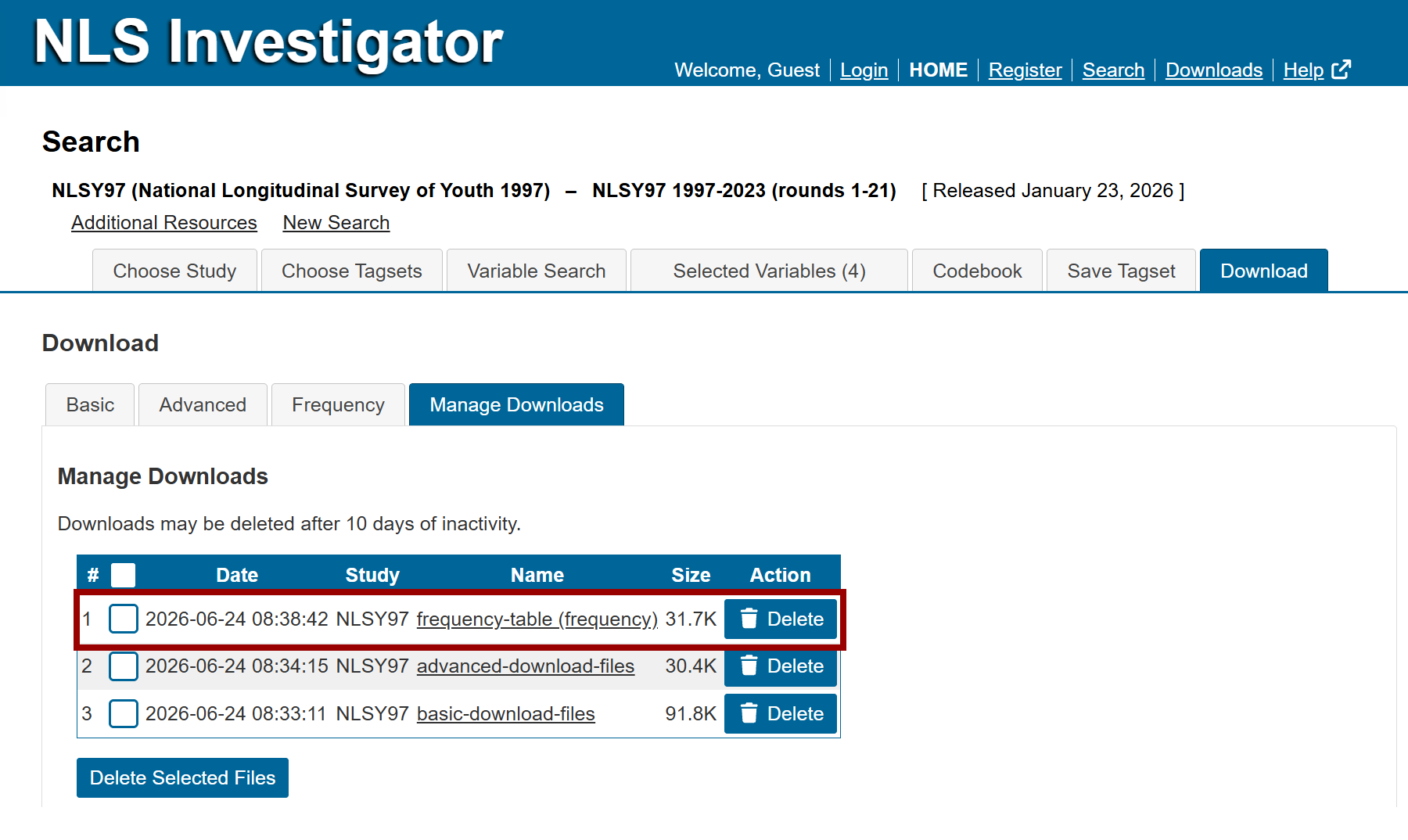
Note: Downloads may be deleted after 10 days of inactivity.
Frequency Output
| R0536300, KEY!SEX (SYMBOL) 1997 | R1482600, KEY!RACE_ETHNICITY (SYMBOL) 1997 | ||||
|---|---|---|---|---|---|
| 1 | 2 | 3 | 4 | Total | |
|
1 |
|
|
|
|
|
|
2 |
|
|
|
|
|
|
Total |
|
|
|
|
|
Note: Results are weighted with round 1 sampling weight panel method.
Next: Manage Downloads
Previous: Apply Universe Restrictors
Quick links: Table of Contents | Glossary of NLS Terms