The Choose Tagsets tab, located second from the left, is accessible once a chosen study (cohort) is loaded. It displays three sections: required and recommended variables, saved tagsets, and upload tagset.
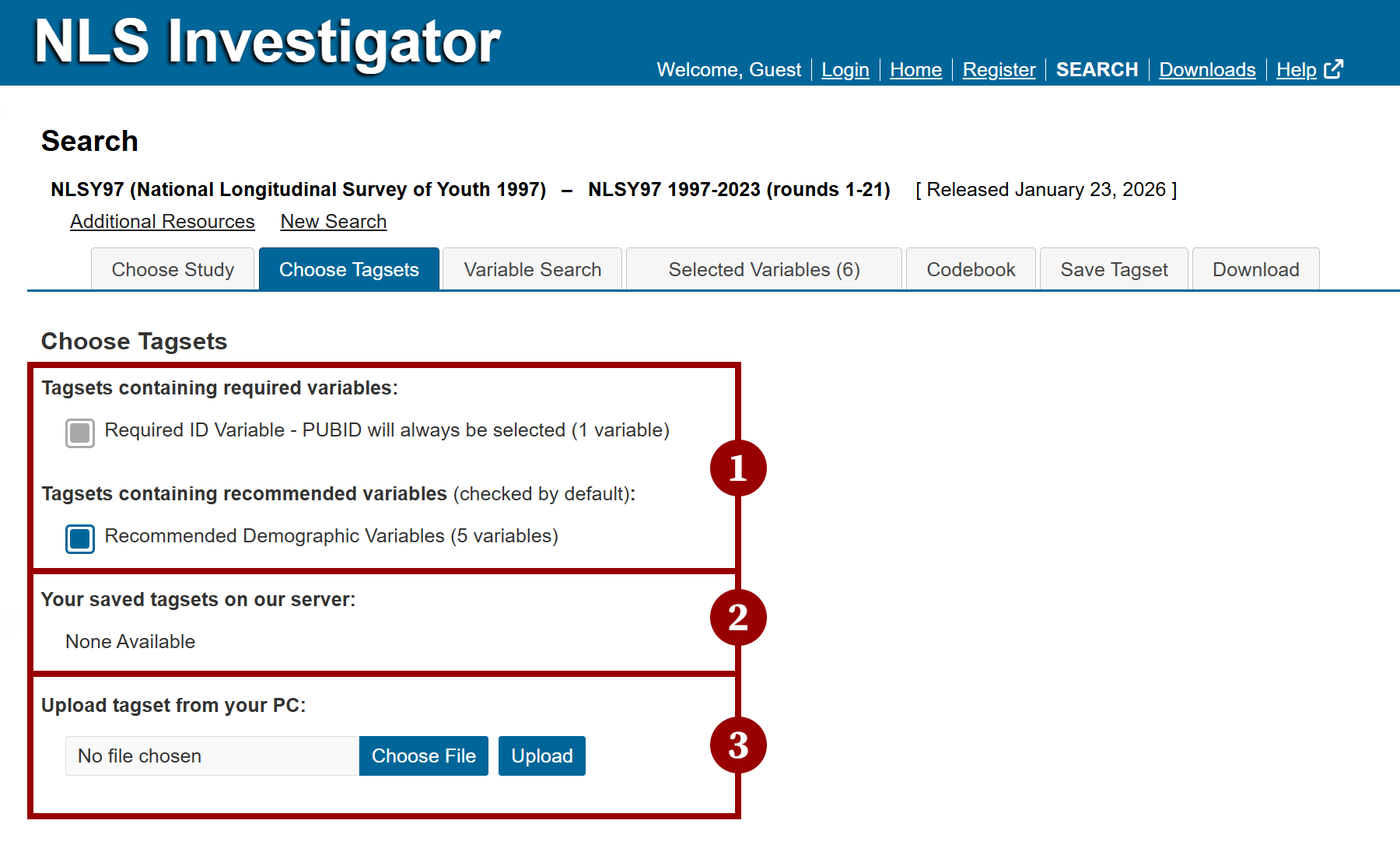
From top to bottom:
- Required and recommended variables is where you will find:
- Required variables, such as the PUBID, will be automatically selected and cannot be unselected.
- Recommended demographic variables will be automatically selected, but the user can remove them from their tagset if desired.
- Note: A list of the required and recommended variables is available in the Selected Variables tab.
- Saved tagsets contains tagsets saved to the server during previous sessions. This feature is available only to registered users.
- To open a saved tagset, select its checkbox to load it into the Selected Variables tab.
- To delete a saved tagset, click Delete next to the tagset description.
- Note: Saved tagsets are displayed only when users are signed in and have previously saved a tagset for the selected cohort or study.
- Upload tagsets loads tagsets stored on your computer. An account is not required.
To upload a tagset:- Click Choose File and browse to locate the tagset on your computer.
- Tagset files include a cohort-specific file extension, such as .NLSY97.
- In the file browser window, select the file and click Open.
- Click Upload to load the tagset.
- The variables from the uploaded tagset will appear in the Selected Variables tab.
- Click Choose File and browse to locate the tagset on your computer.
Next: Variable Search
Previous: Choose Study
Quick links: Table of Contents | Glossary of NLS Terms