Browse by index
You can also create search criteria by clicking Show Index below the Values field. This opens the Index of Selected Variables, an interactive tree structure that allows you to browse and select available variables. The availability of this feature depends on the selected study.
In the example below, NLSY97 is selected as the study and includes the Show Index feature.
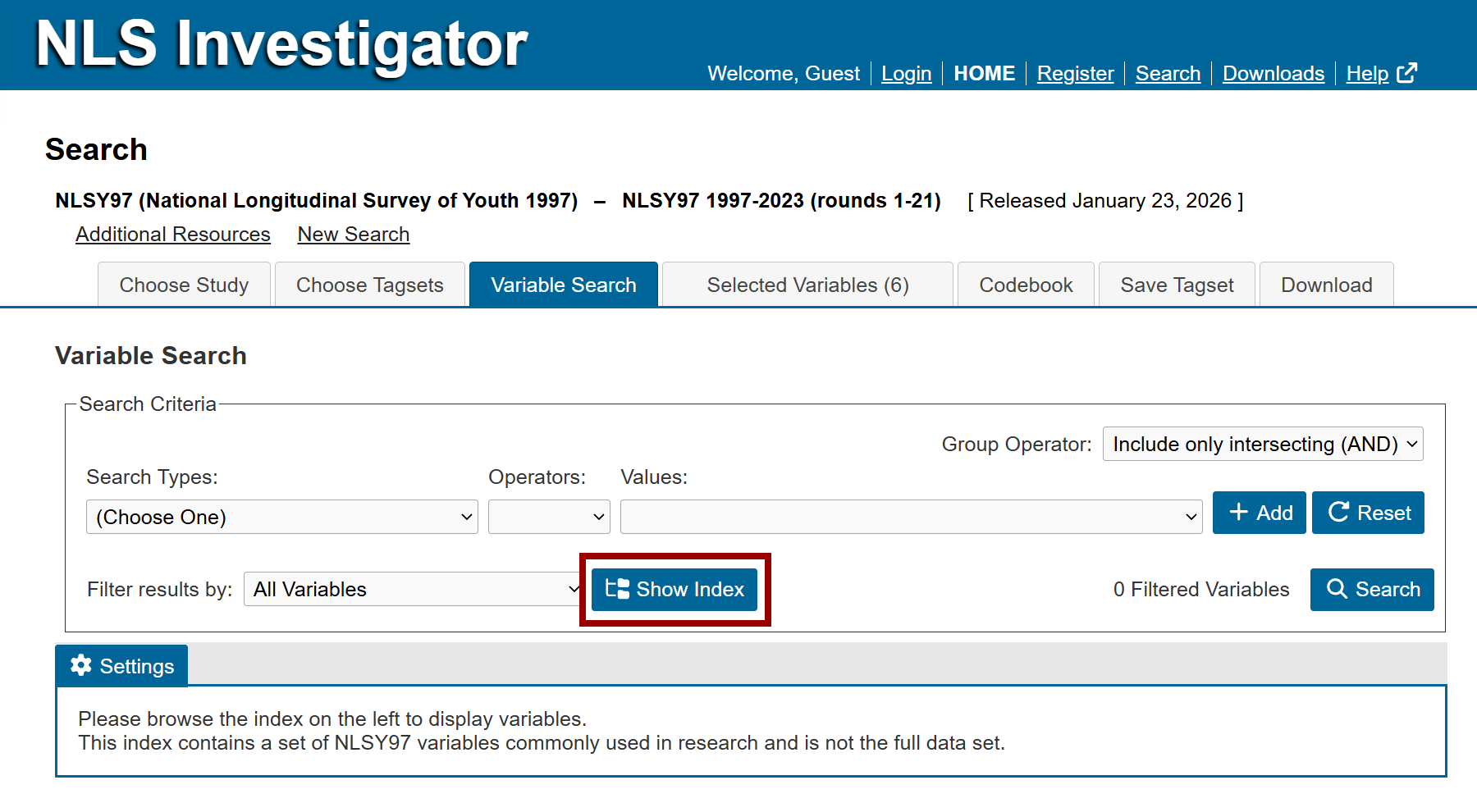
When the Index of Selected Variables is open, it will be located beneath the Search Criteria section to the left of an area reserved for the search results table. The Show Index button label and function will change to Hide Index in order to close the index view.
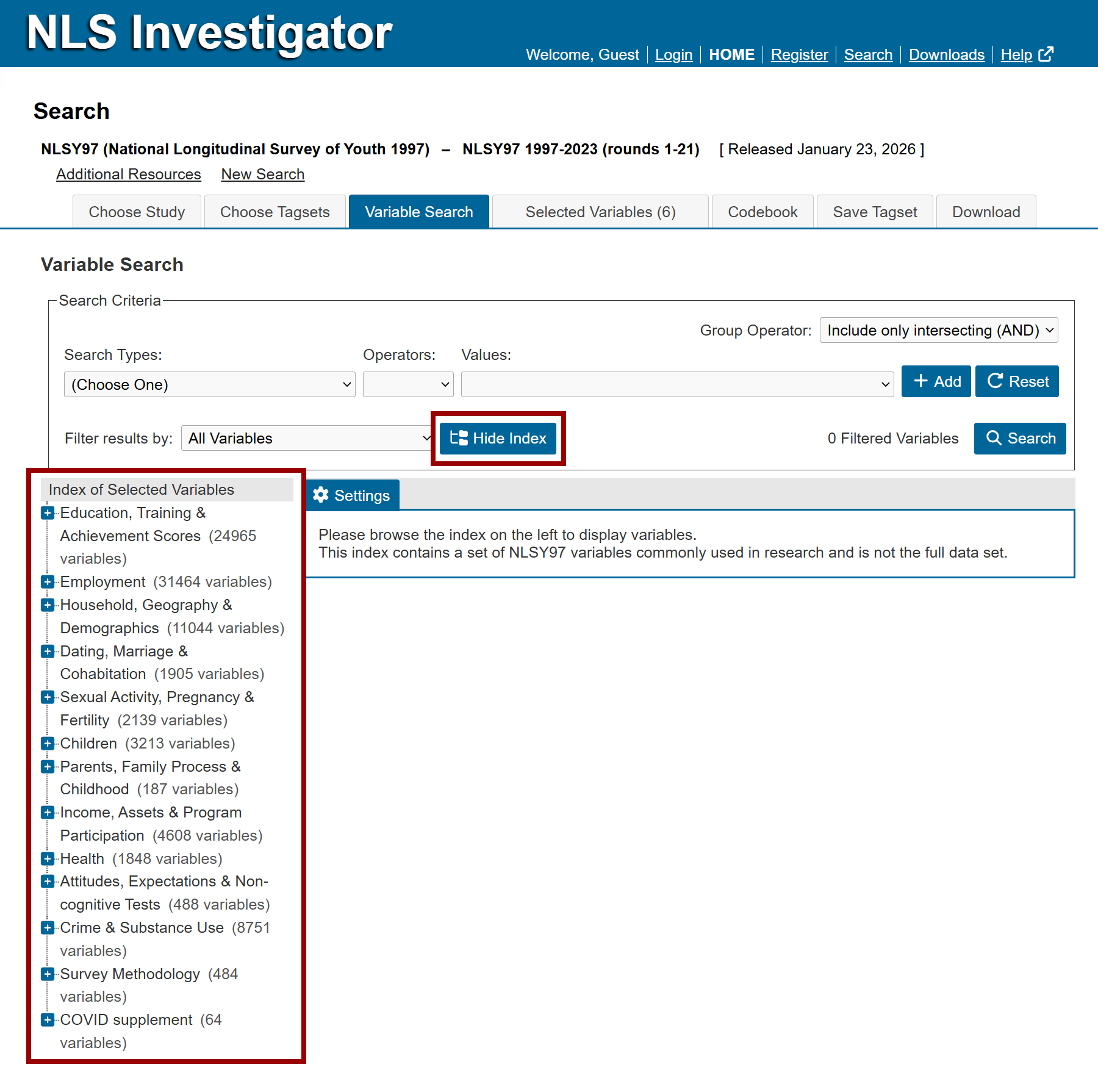
The following image shows:
- Plus and minus signs used to expand and collapse sections of the index tree to locate desired variables. In this example, Highest Grade Completed has been chosen.
- When a variable is selected in the index tree, the menu bar in the Search Criteria options updates to reflect that variable. In the Highest Grade Completed example, the menu bar displays:
- Search Types = Selected Index
- Operators = is
- Values = Highest Grade Completed
Variable display compression
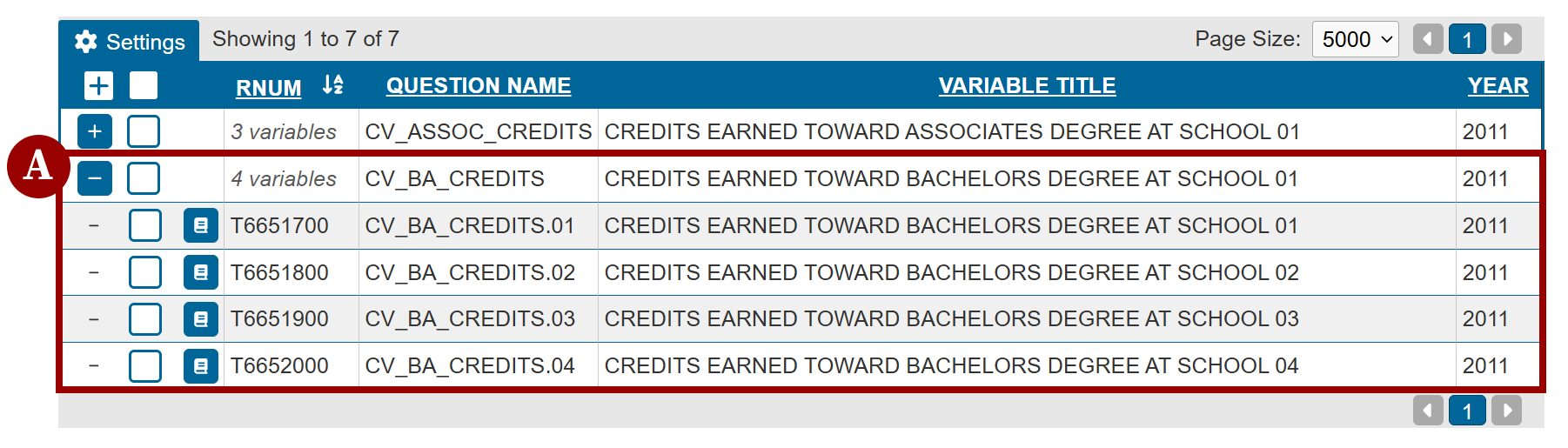
To display results more efficiently, the NLS Investigator groups variables in questionnaire loops. Variables that are grouped can be expanded or collapsed using the plus or minus sign icons in the first column of the search results table. This is known as display compression.
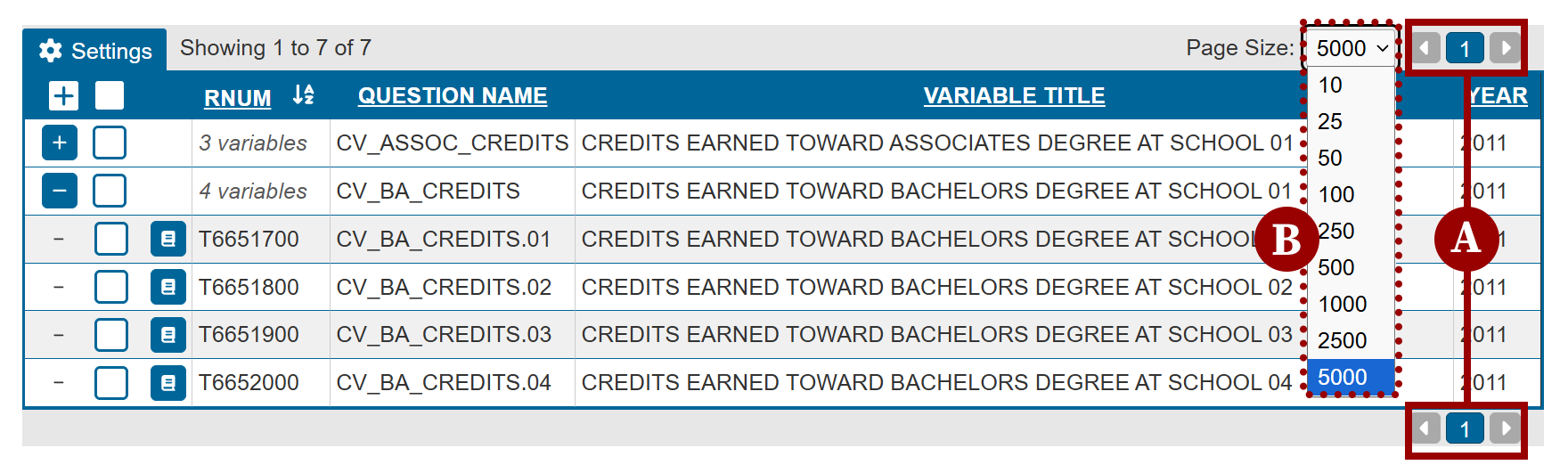
In the following image, search results appear in a table beneath the Search Criteria section. Seven variables are shown, organized into two groups: one collapsed and one expanded. For example, the CV_BA_CREDITS entry on the first line displays "4 variables" in the RNUM column. Clicking the + icon (marker A) expands the group to reveal the four individual variables it contains. You can select the entire CV_BA_CREDITS group at once, or expand it and select only the specific variables needed.
Paging results
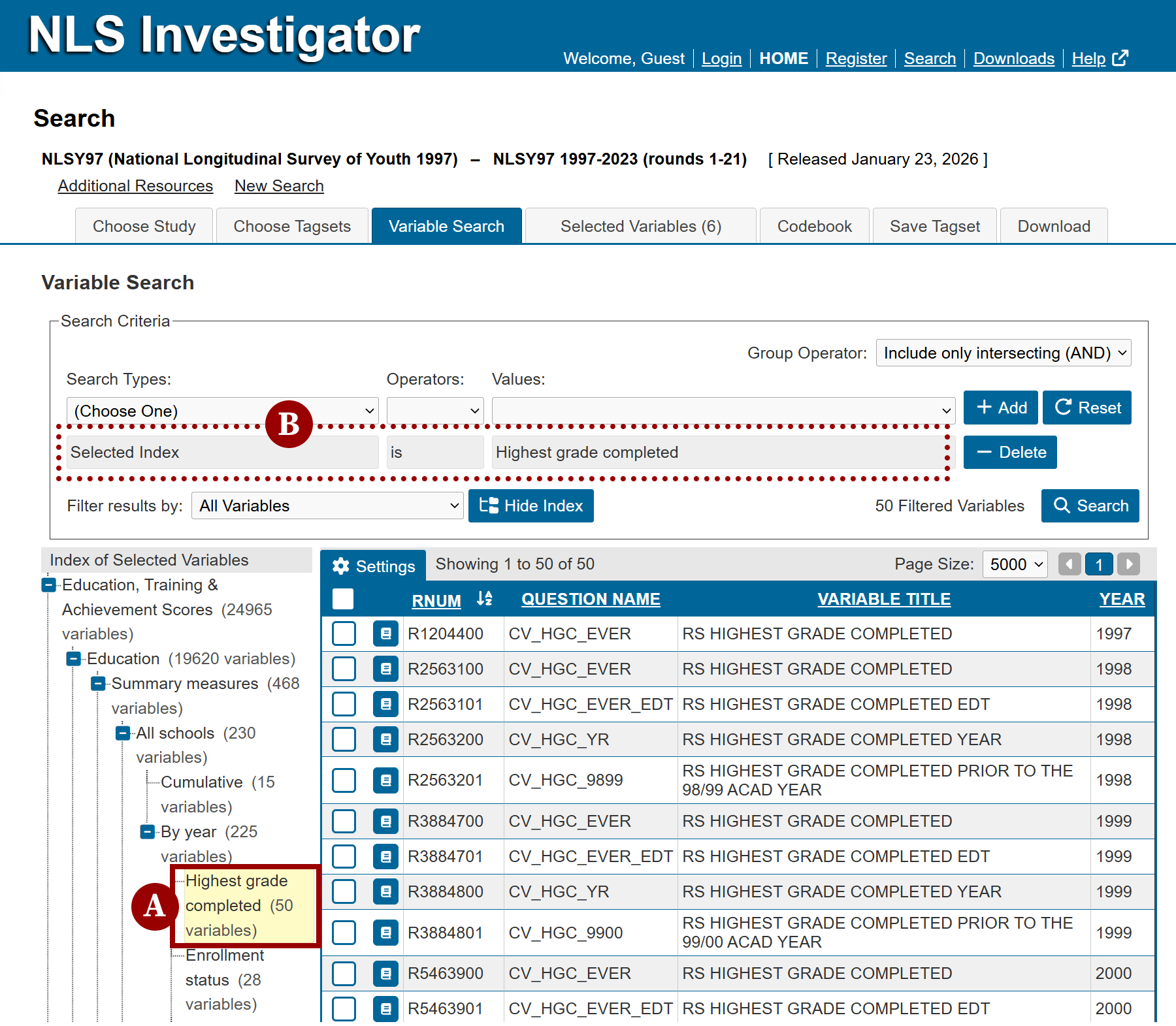
By default, NLS Investigator displays up to 5,000 variables per page. If your search returns more than 5,000 results, use the navigation arrows in the upper-right or lower-right corner of the search results table to move between pages (marker A). To adjust the number of results displayed on each page, use the Page Size drop-down menu located to the left of the navigation arrows (marker B).
Next: Tag Variables
Previous: Creating Search Criterion
Quick links: Table of Contents | Glossary of NLS Terms