Structure > Block Layout > Block Visibility (show/hide)
Show a block on, or hide a block from, certain pages by using the block's config settings:
- Choose configure in block drop-down menu
- Under: Visibility > Page > choose Show or Hide radio button
- Enter URLs
- If only applying to the home/frontpage, use: /
- /home and <front> do not work as URLs in our setup (just the single slash)
- To reference other pages or sections, urls must start with /content. Examples:
- /content/cohorts <--refers to the individual cohorts landing page
- /content/cohorts/* <--refers to all the pages in the cohorts section
- If only applying to the home/frontpage, use: /
- Save block
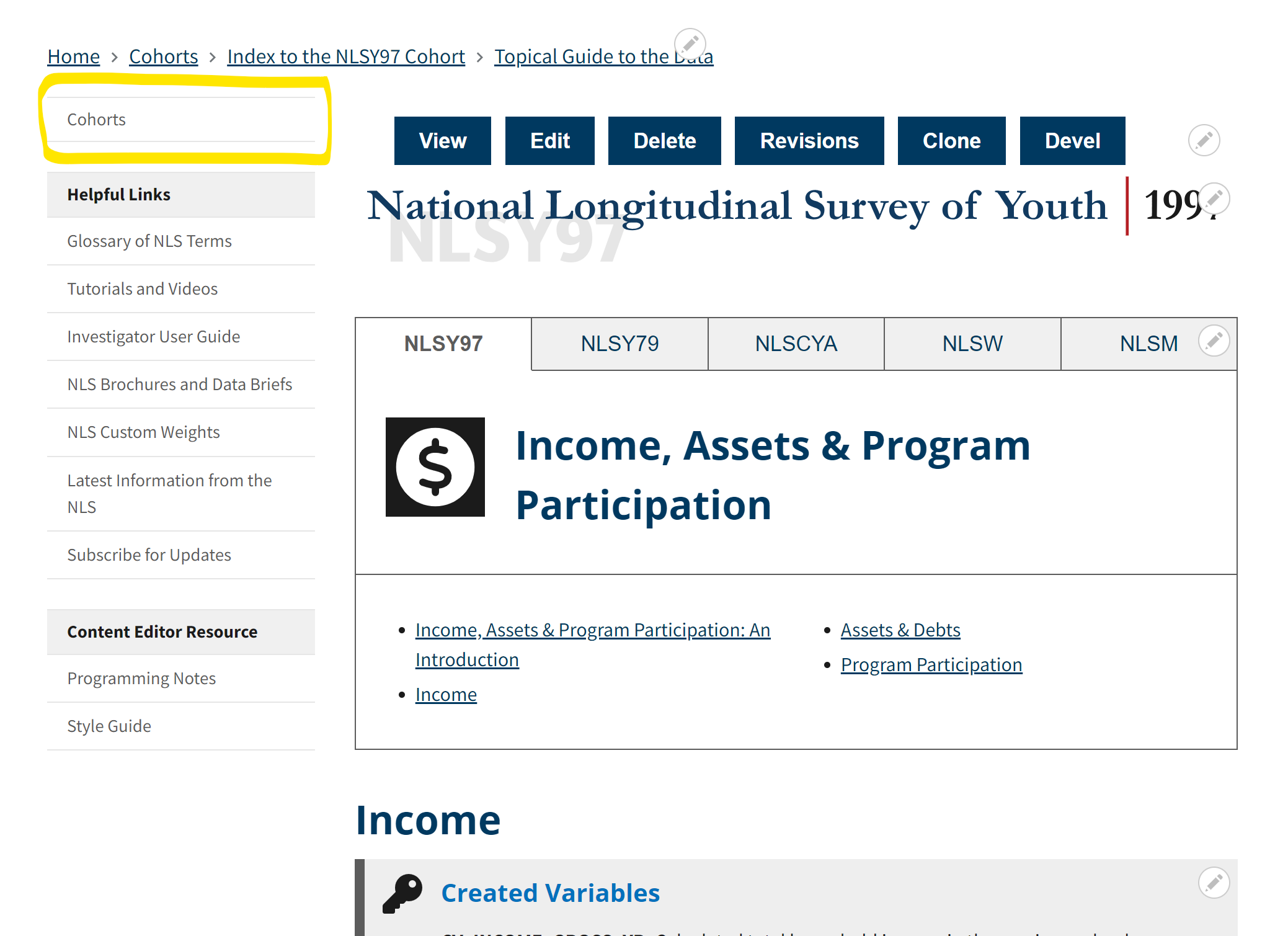
Missing side-nav menu block in sub-pages
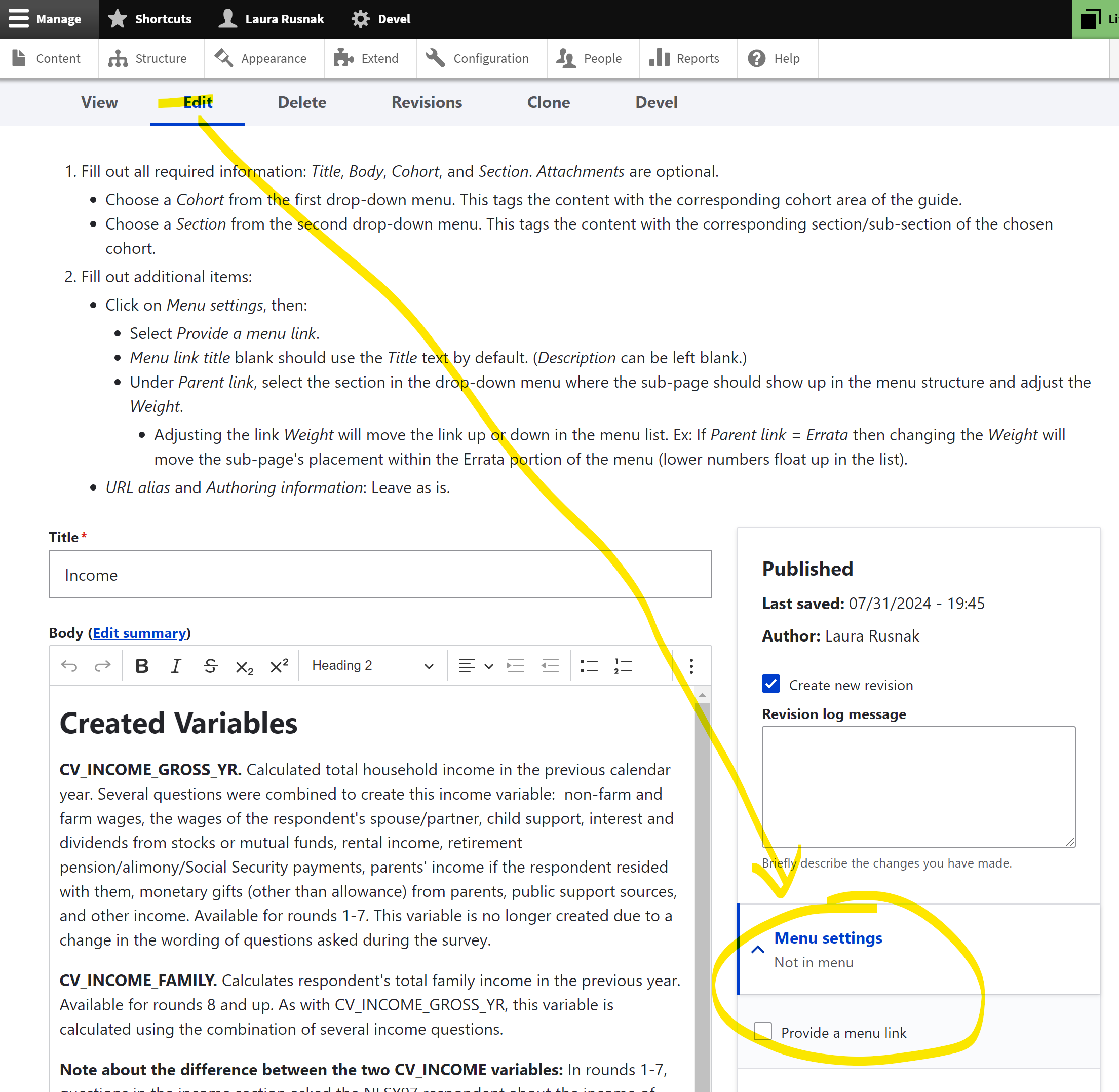
If the section menu isn't visible after adding a new page, enter the Edit mode of the page and enable the Menu setting.
- Click Edit to view the edit mode and click on Menu setting to check on Provide a menu link.
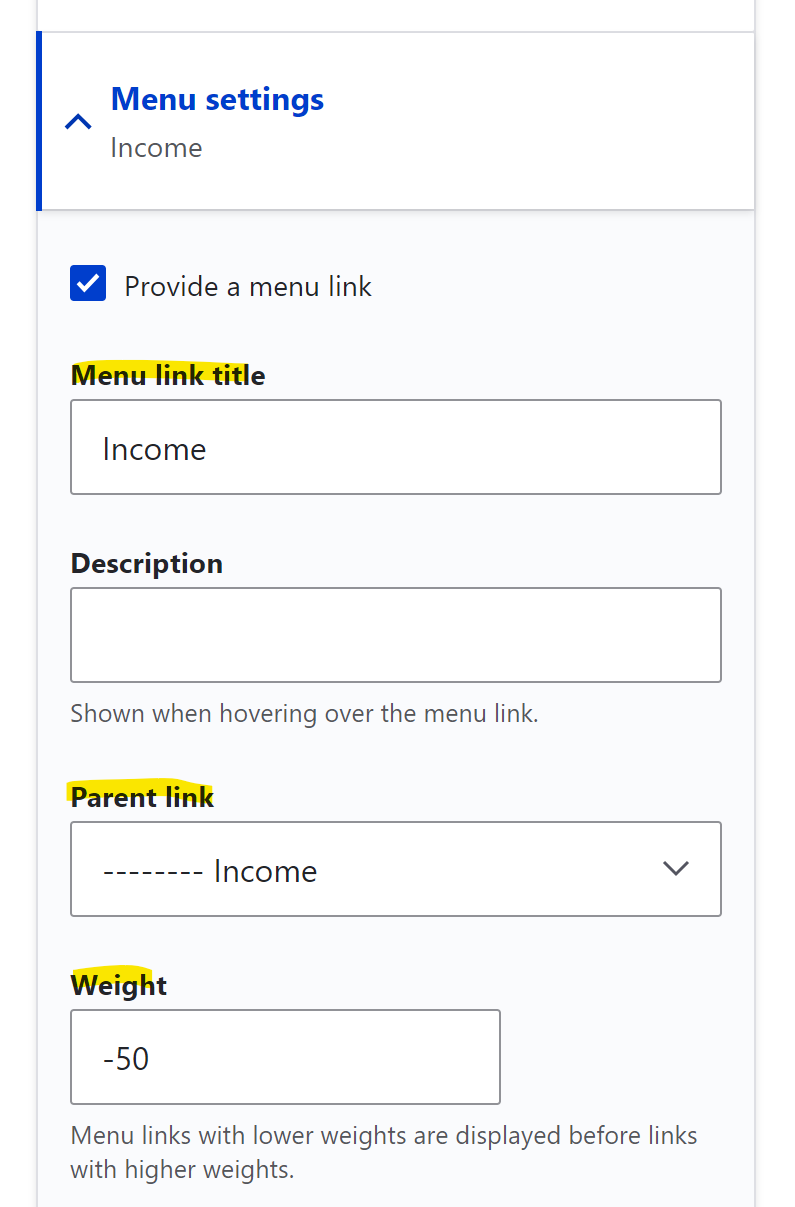
- When Provide a menu link is checked, the Menu link title should pre-fill with the page title (in most cases, leave this as is).
- Next choose a Parent link which is the page's placement in the menu hierarchy. For example, this page is in: NLSY97 > Topical Guide > Income.
- Add a weight to adjust the link's placement within a group of links. For instance, if the Income section of the topical guide has four sub-pages, the order from top to bottom can be set by giving each sub-page a weight. The lower weighted sub-page floats the link to the top of the stack order.
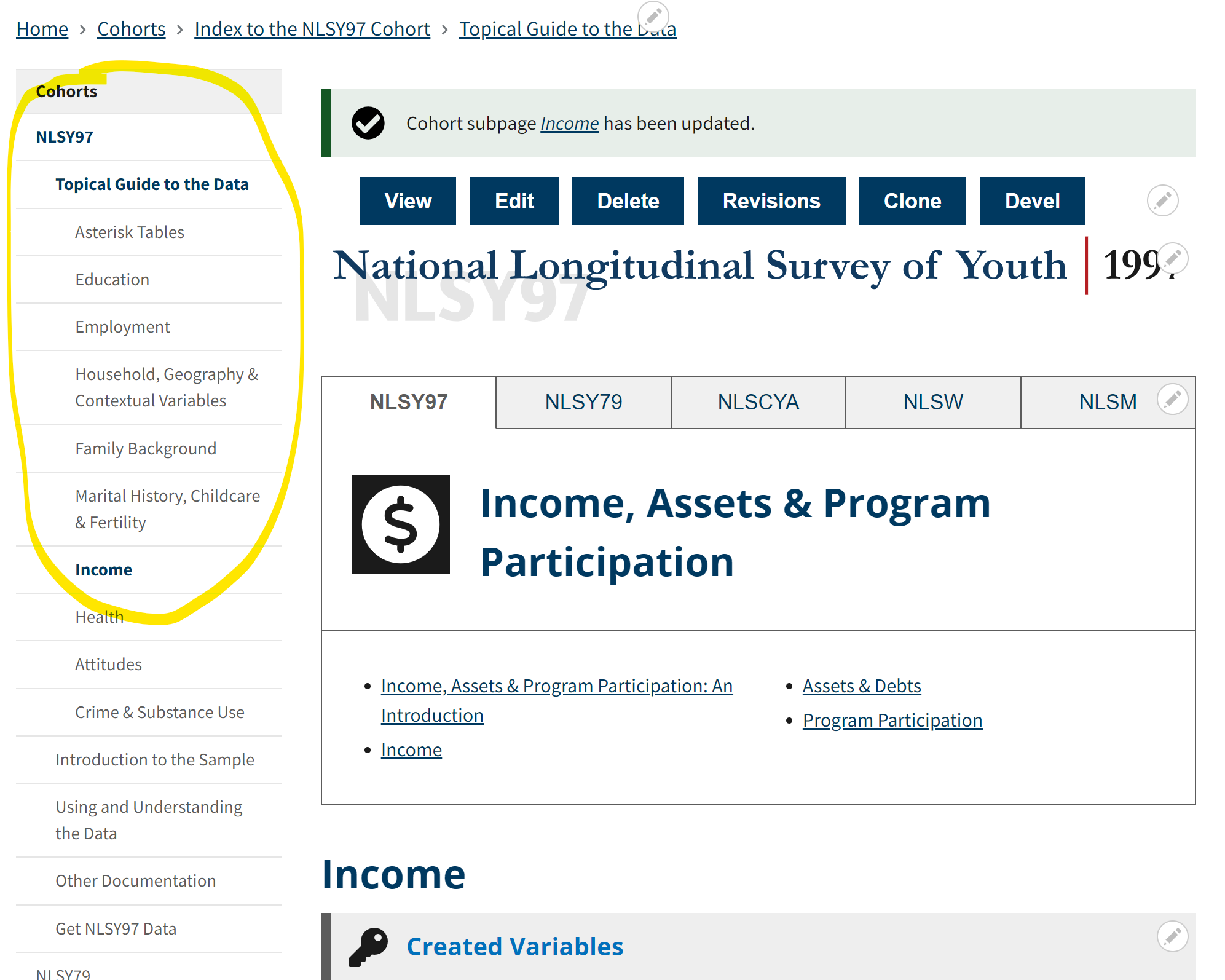
- Click the Save button at the bottom of the Edit view to check if the menu is now visible.
-
Note: Just because a sub-page has its menu setting (link) enabled, doesn't necessarily mean the link itself will show up in the side-nav. The side-navs are programmed to only show a few levels deep in the hierarchy and the new sub-page may be lower in the hierarchy. However, it still needs its menu setting (link) enabled for the parent links/side navs to show up in the left-hand sidebar area.
-